
How to convert m4p to mp3 on Windows and Mac
Basically, when you buy music from iTunes, it comes with a copyright protection called DRM. These DRM-protected songs are locked so that they only work with Apple MP3 players. That means that if you bought a Microsoft Zune, you cannot use iTunes music.
So, what is the solution? You have to burn a CD. When you do this, the DRM is removed (because the music is converted to a non-DRM-compatible media). After you burn the CD, you can rip it to your PC as an MP3 file which no longer has DRM.
1. Insert a CD-R or CD-RW disc into your CD-ROM drive.
2. Burn your playlist to make an "Audio CD". You cannot select the "MP3 CD" option since it requires the DRM protected iTunes music files be converted to (DRM free) MP3.
3. After the audio CD is successfully burned, insert the disc into your CD-ROM drive again. Then you can use iTunes to import the music tracks on the burned disc as MP3 files.
Alternatively, you can use TuneClone. TuneClone makes a virtual CD-ROM drive, tricking your PC into believing that you are burning a CD. Therefore, the DRM is removed without wasting a CD. Below is the step by step tutorial using TuneClone and iTunes 9.0.2 to convert M4P to MP3.
Step 1. Download and install TuneClone
TuneClone is compatible with Windows XP, Windows Vista (except Vista 64 bit) and Mac OS X 10.5 or above.
(Windows Version | Mac Version)
Step 2. Create a new playlist in iTunes
Create a new playlist, and add the iTunes songs you want to convert to the playlist.
Step 3. Make burning settings in iTunes
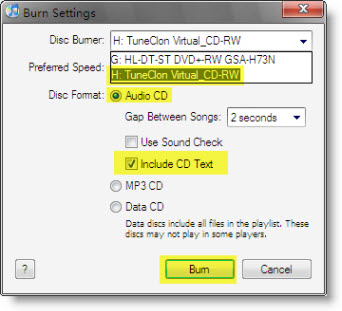
Right click the playlist you just created and choose "Burn Playlist to Disc". Or you can select part of songs from the playlist and click the "Burn Disc" at the bottom right corner of iTunes interface. In the pop-up dialog of "Burn Settings", make the settings as highlighted below:

Step 4. Start burning
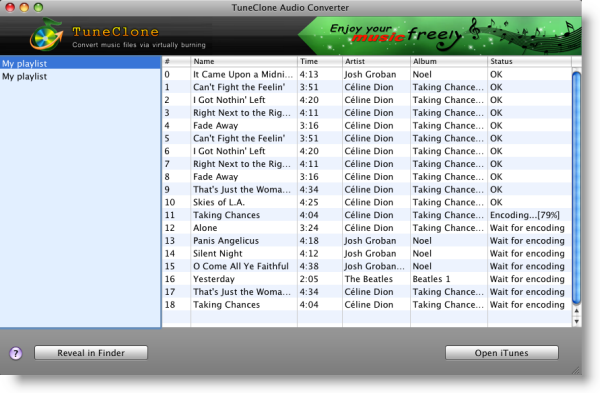
Click the "Burn" button to start burning. After the burning gets started, TuneClone will automatically convert the iTunes music to MP3 files. You can open the manager screen to show all the converted music files.
Tip: The most important step is to choose the CD burner. Then TuneClone Audio Converter will convert the music files automatically. It is exceedingly easy when you want to batch convert lots of files.
The detailed tutorial for Windows is available at: http://www.tuneclone.com/use-tuneclone-in-itunes9-convert-m4p-to-mp3.php
The detailed tutorial for Mac is available at: http://mac.tuneclone.com/how-to-convert-m4p-to-mp3-on-mac.php
0 comentarios